Change Explorer
The Change Explorer is the central investigation tool of DHIS2 Audit Vision. It allows you to navigate through the entire audit history of the system, filter for specific events, and analyze in detail what changed in each object.
1. History Table Overview
The main page of the Change Explorer features a chronological list of all captured changes.
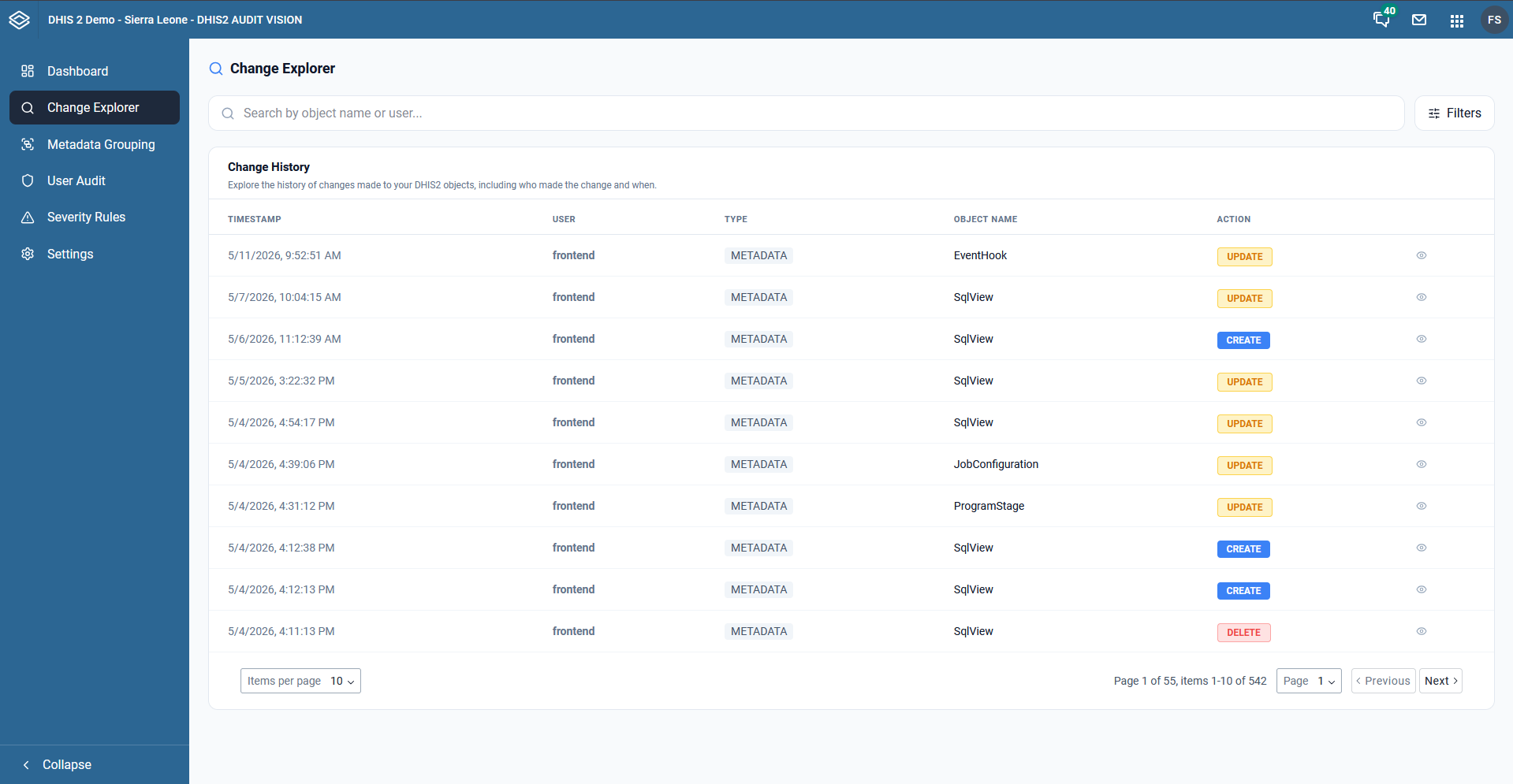
The table includes the following columns:
- Timestamp: The exact date and time of the change.
- User: The user or process that performed the action.
- Type: The type of audited object (e.g., METADATA).
- Object Name: The name of the object that was changed (e.g., SqlView, ProgramStage).
- Action: The type of operation performed (CREATE, UPDATE, DELETE).
2. Filtering and Search
To find specific changes, you can use the search bar or advanced filters.
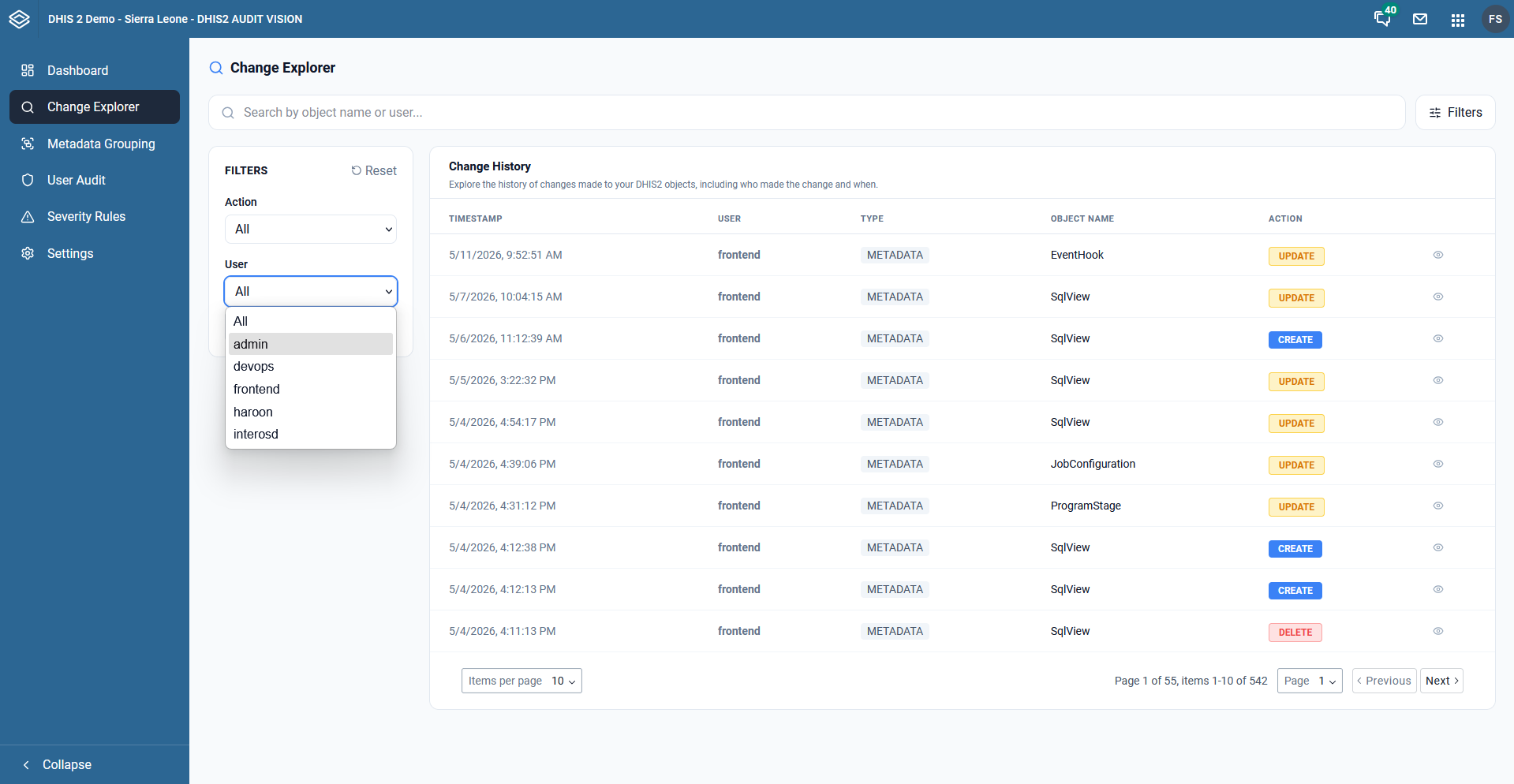
You can filter by:
- Action: See only creates, updates, or deletes.
- User: Focus on the actions of a specific user (e.g., admin, devops, frontend).
- Name Search: Search directly by object name or UID.
3. Change Details (Diff View)
By clicking the view icon (eye) on a table row, the Change Details modal opens. The Diff View tab is the most intuitive way to see what changed.
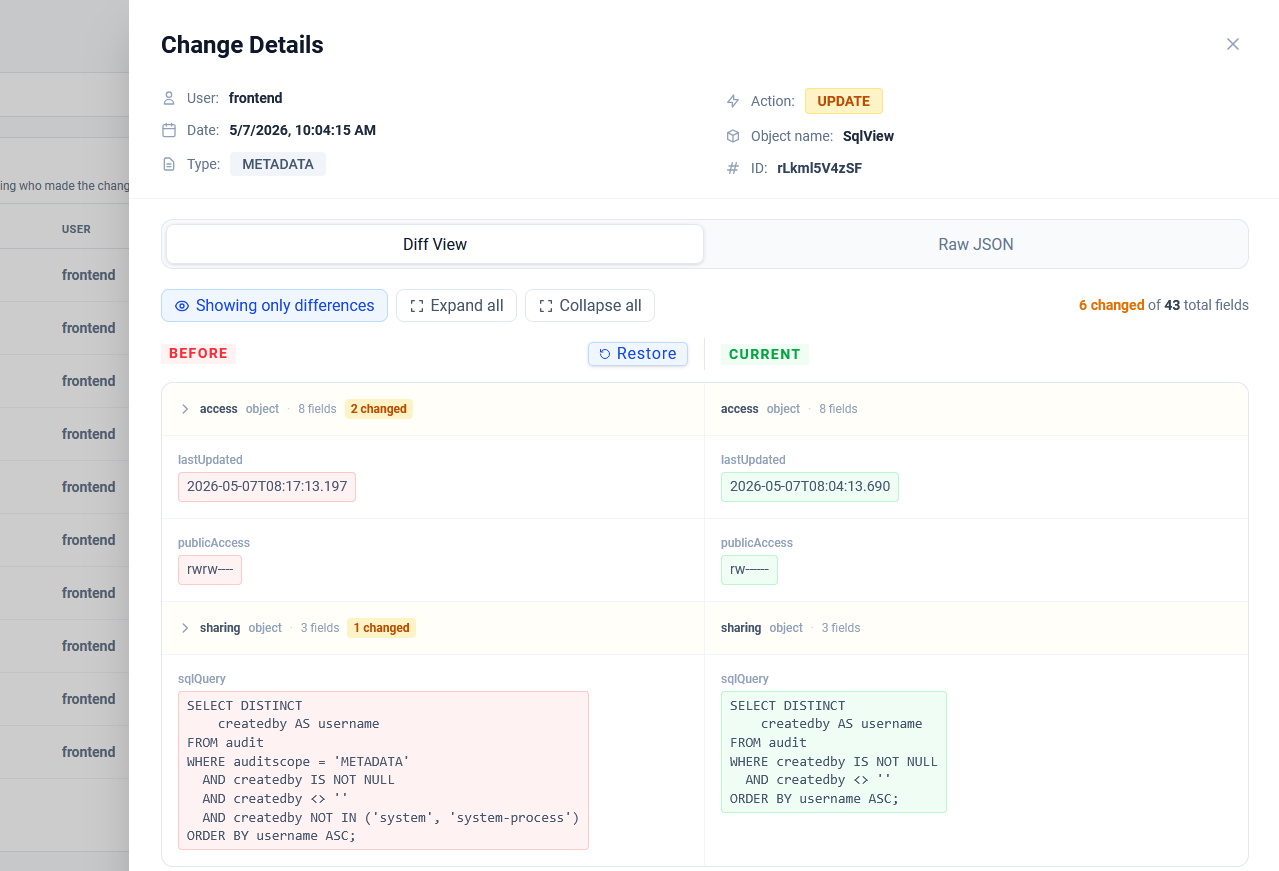
In this view:
- BEFORE: Shows the state of the object before the change (highlighted in red).
- CURRENT: Shows the current state or state after the change (highlighted in green).
- The system highlights only the fields that were modified, making it easy to identify changes in complex objects with many fields.
4. Raw JSON Visualization
For technical users, the Raw JSON tab allows you to see the complete data structure in JSON format.
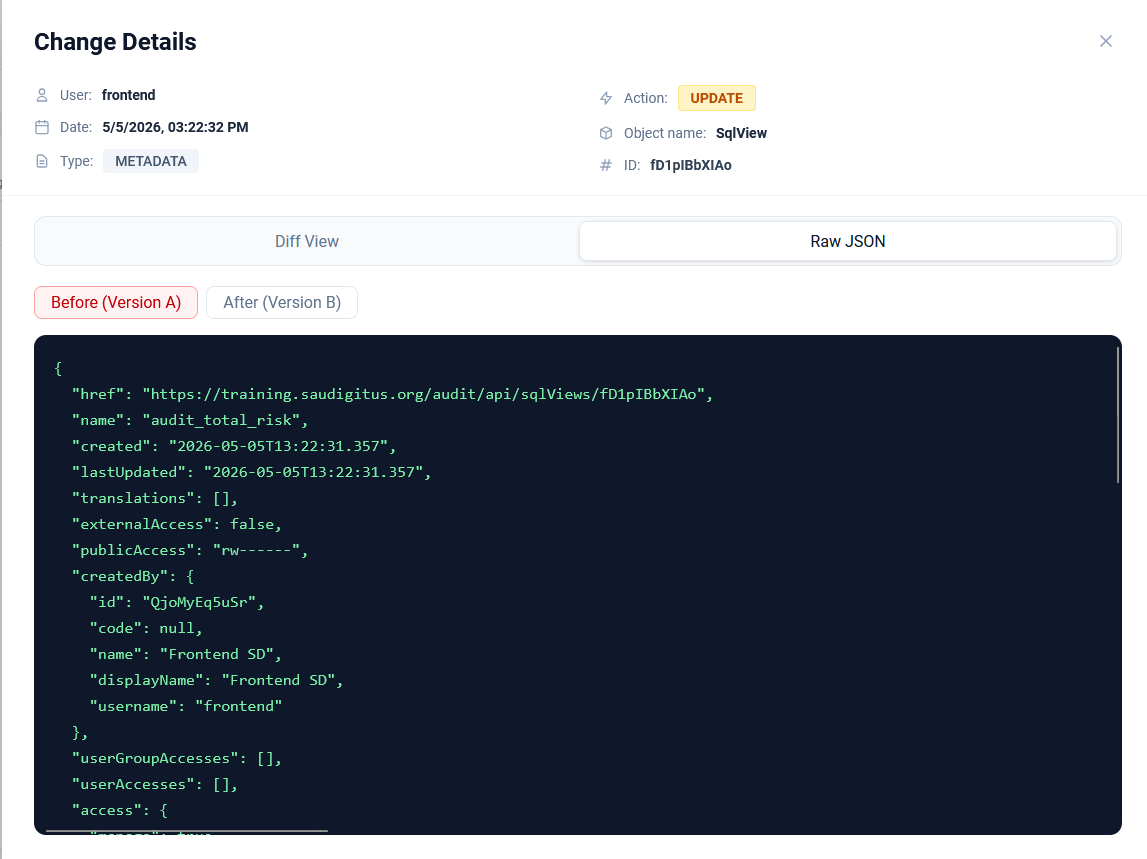
You can toggle between Version A (Before) and Version B (After) to inspect the full payload that was sent or received by DHIS2.
5. Object Change History
Within the details of a change, you can see the specific timeline for that object.

This allows you to quickly see if the same object has been changed multiple times recently and by whom.
6. Data Restoration (Restore)
Audit Vision offers an experimental restoration feature.

When viewing the previous state (BEFORE) of a change, the Restore button allows you to attempt to revert the object to that specific state in DHIS2.
The restore functionality should be used with caution, as DHIS2's referential integrity may be affected depending on the object type.