Metadata Grouping
Metadata Grouping is a powerful feature that allows you to organize your DHIS2 objects (like Programs and DataSets) into logical groups based on health programs, technical areas, or any other classification. This makes monitoring related changes much more efficient.
1. Group Overview
The main Metadata Grouping page displays all your created groups as cards.
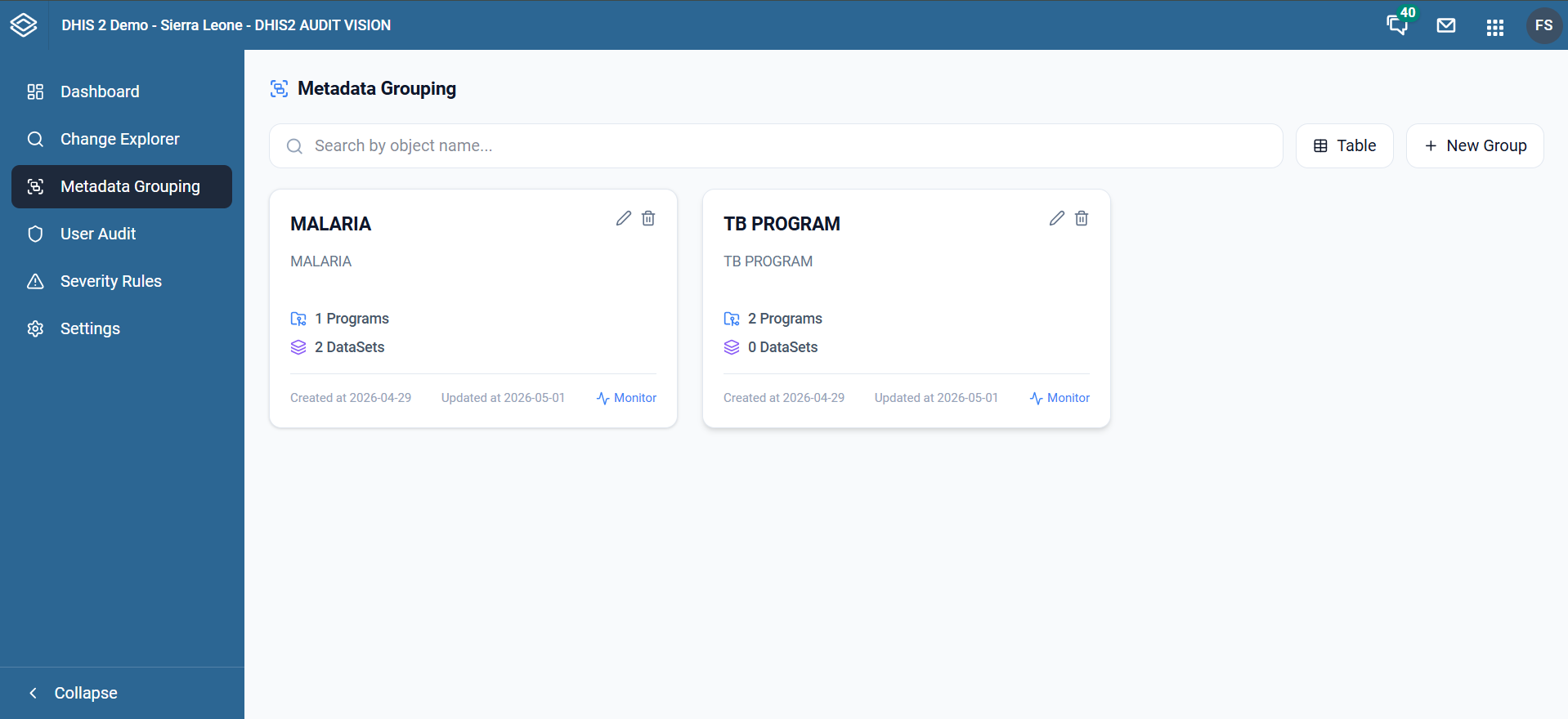
Each group card shows:
- Group Name and Description: e.g., HIV/SIDA, MALARIA, TB PROGRAM.
- Included Objects: The number of Programs and DataSets that are part of this group.
- Timestamps: When the group was created and last updated.
- Monitor Link: A direct shortcut to view all changes related to this group.
2. Group Configuration
A group configuration form is available to manage the objects within a group. The groups can be created, edited, and deleted as needed.
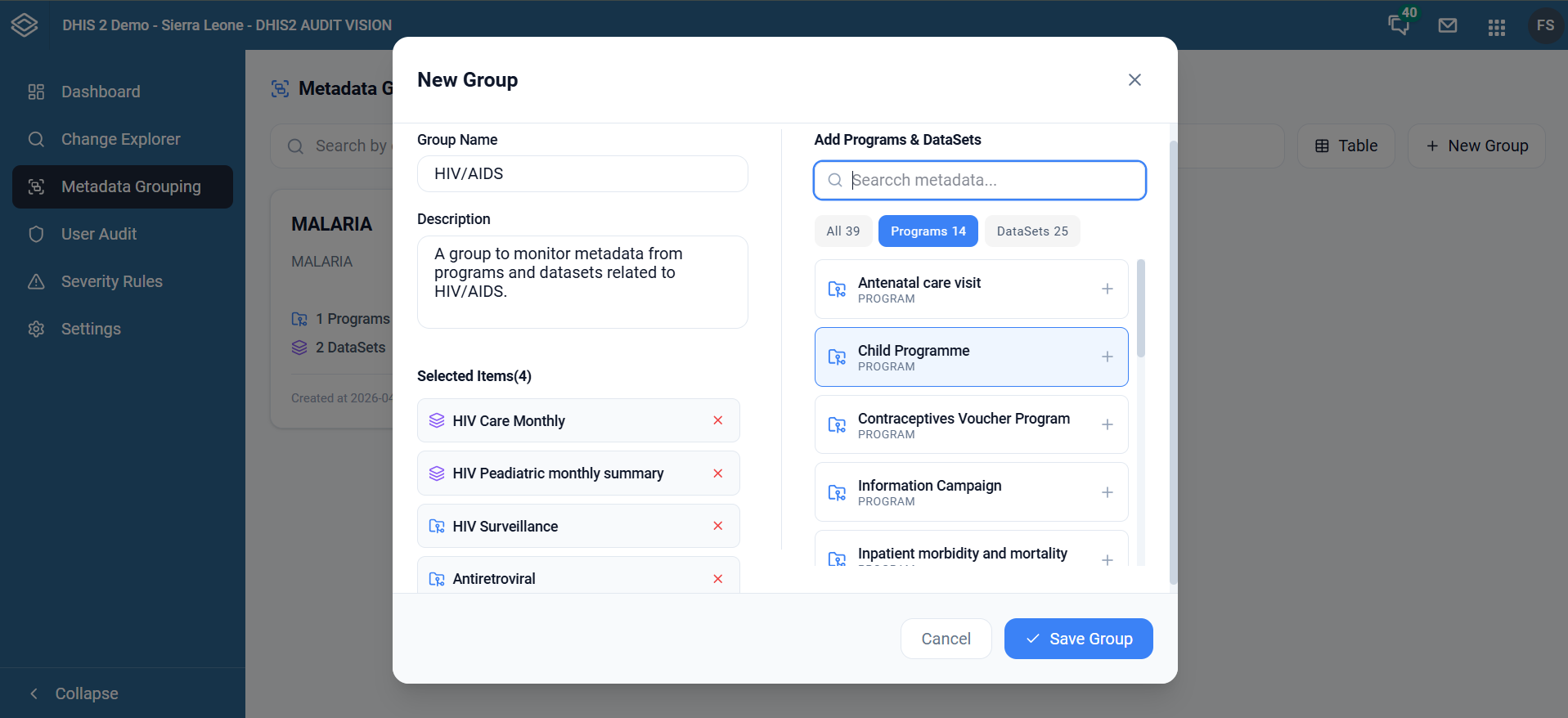
The group configuration form includes:
- Group Name: e.g., HIV/SIDA, MALARIA, TB PROGRAM.
- Group Description: A brief description of the group, useful for context and reference.
- Objects: A list of all selected programs and datasets within the group.
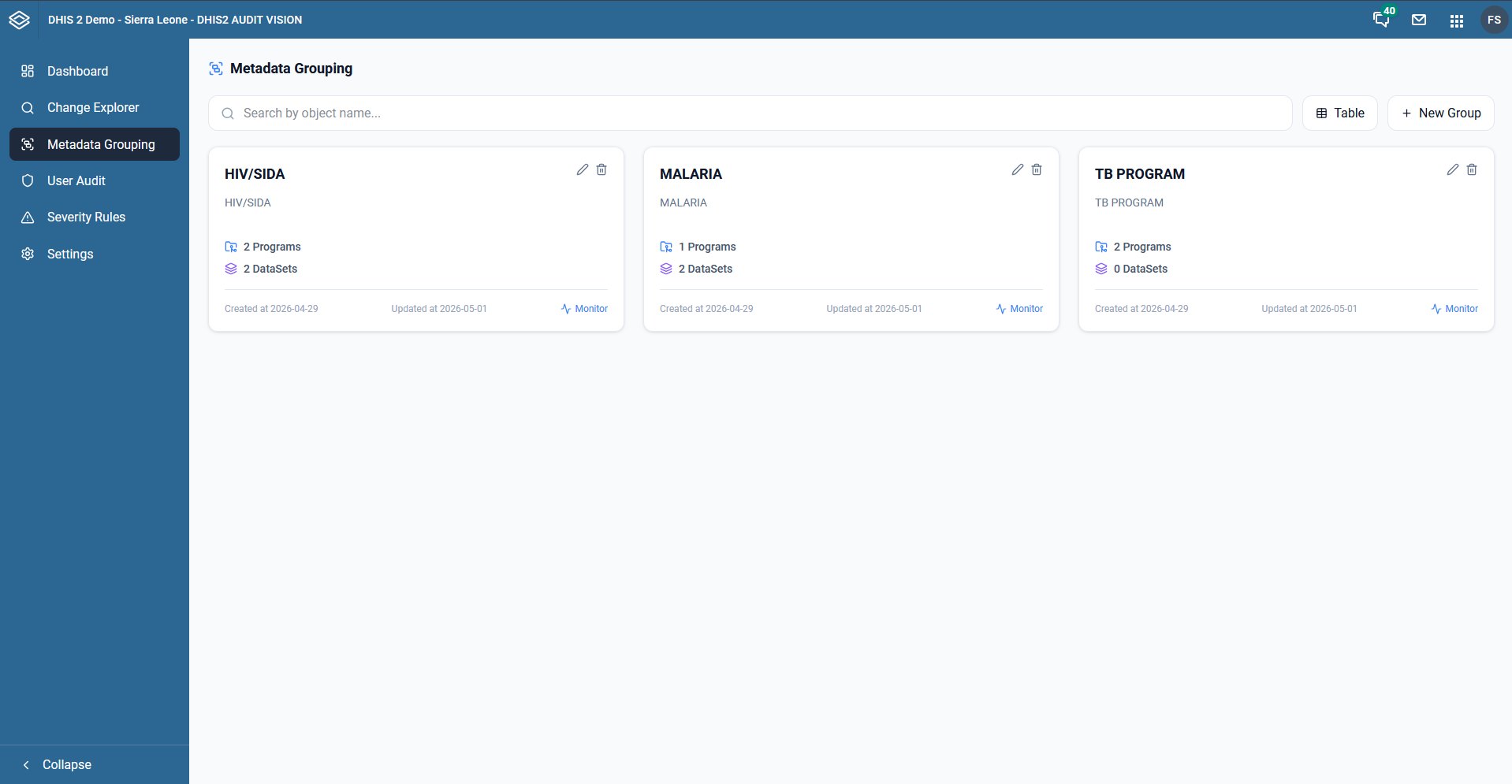
The created group is then displayed in the main Metadata Grouping page.
3. Monitoring Group Changes
When you click on a group or its "Monitor" link, you are taken to a specialized view within the Change Explorer that is automatically filtered for that group.
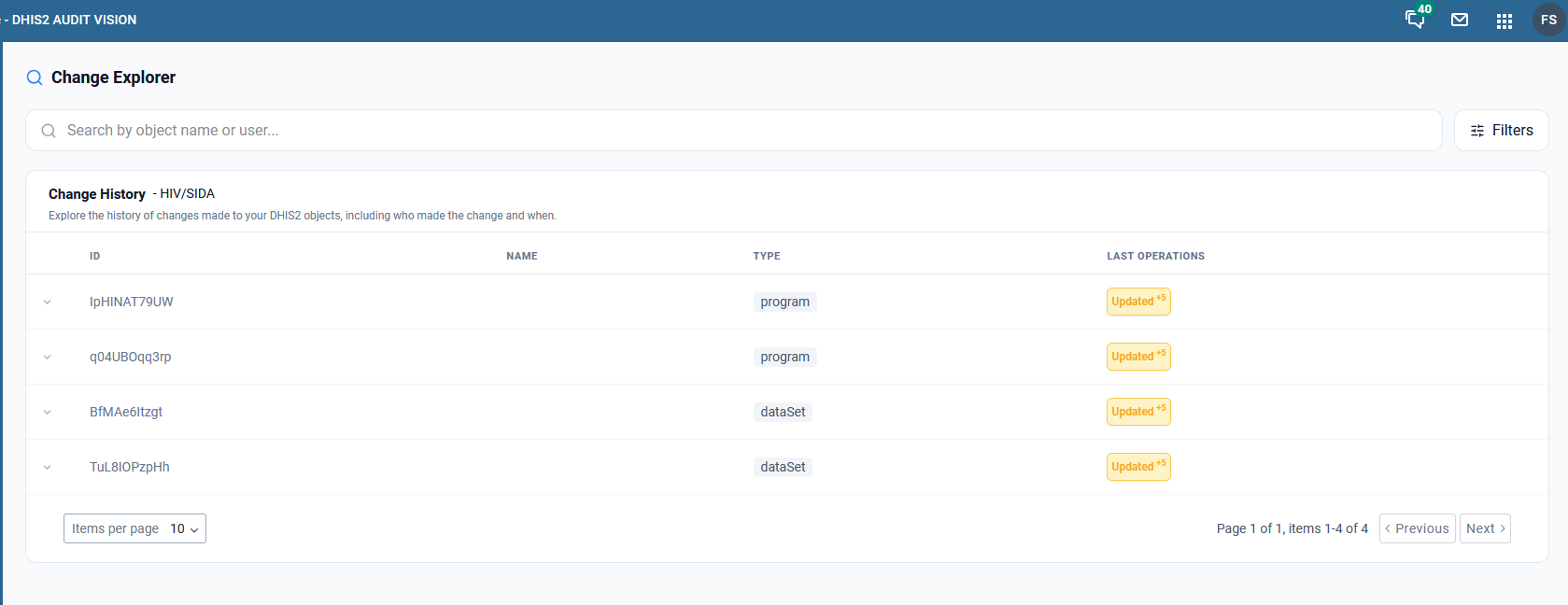
In this view:
- You see all Programs and DataSets assigned to the group.
- Last Operations: A summary of how many changes have occurred for each object (e.g., "Updated +5").
- This provides a high-level view of which parts of a specific health program are being modified most frequently.
4. Detailed Audit Trail per Object
By expanding an object in the group list, you can see its specific audit history without leaving the group context.
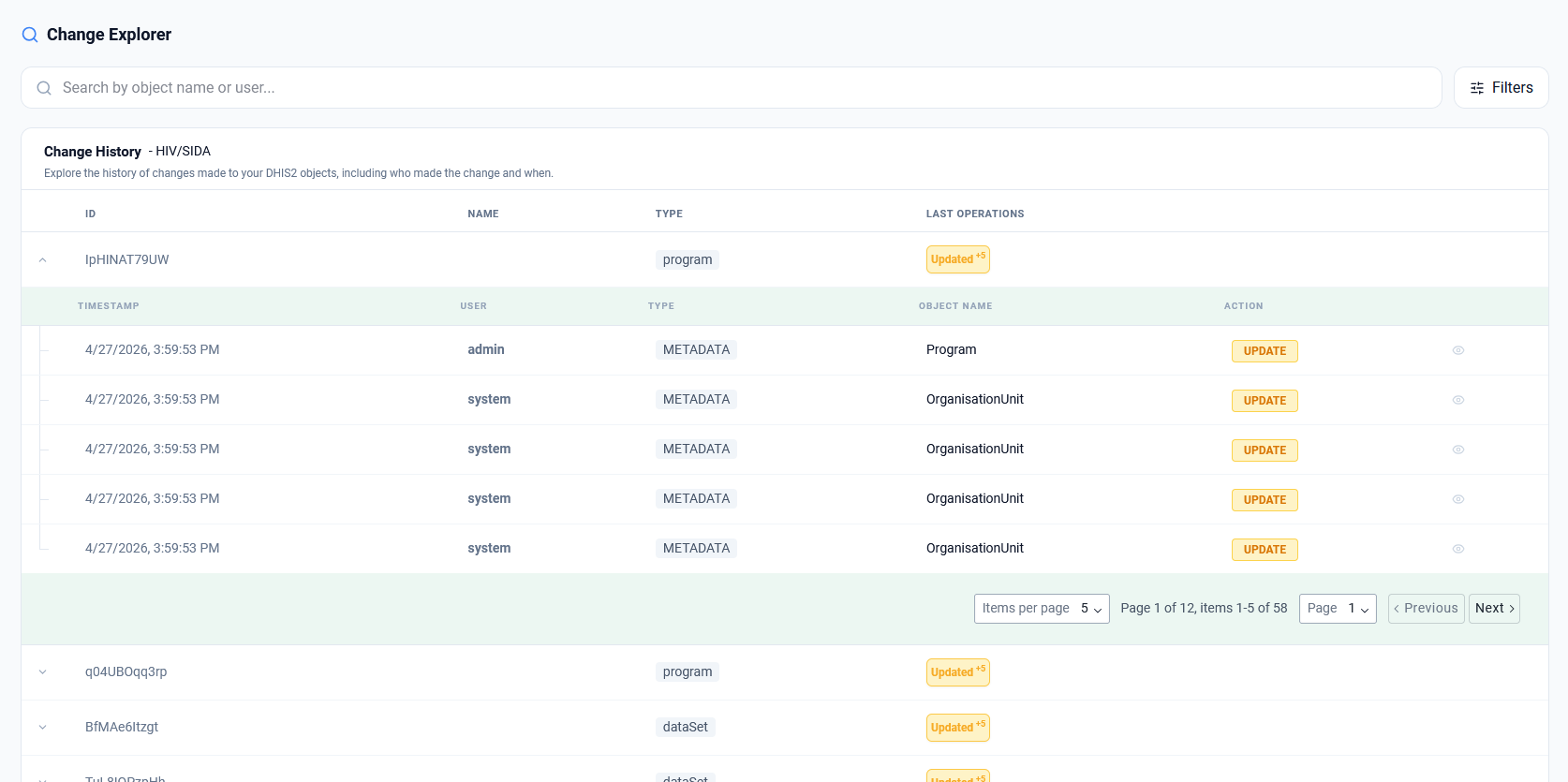
This lists individual operations (CREATE, UPDATE, DELETE) with details on who made the change and when.
5. Analyzing Changes within a Group
Just like in the main Change Explorer, you can drill down into any specific change to see exactly what was modified.
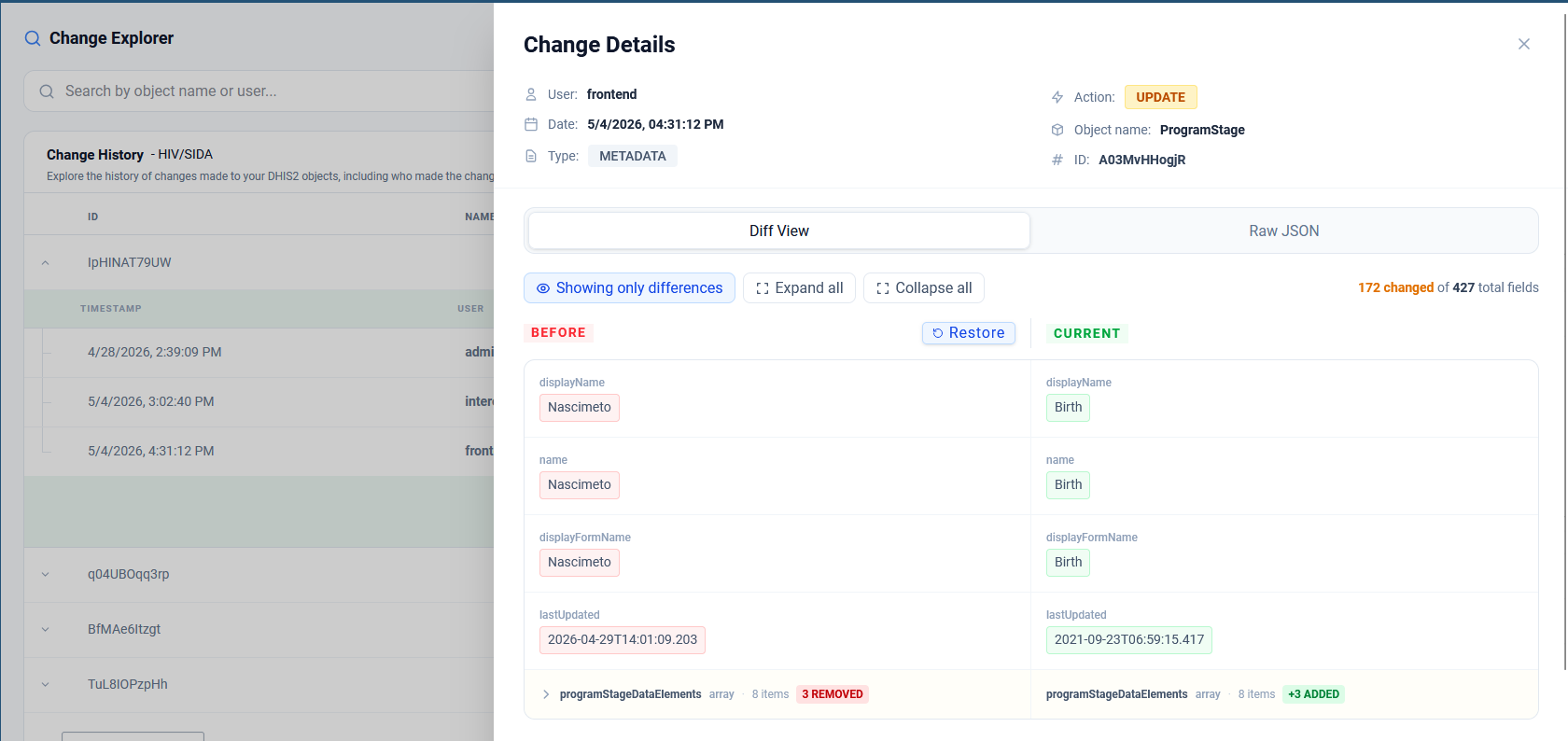
The Diff View highlights the exact field changes (e.g., changing a display name from "Nascimeto" to "Birth"), helping you ensure that configuration changes within your health programs are accurate and authorized.
Benefits of Metadata Grouping
- Focus: Instead of looking at thousands of unrelated audit logs, focus only on the programs you manage.
- Organization: Group objects by department, project, or health area.
- Efficiency: Quickly see which specific program or dataset within a group is being modified.